Custom Grids
Match composition across a photo series with saved grids
How to keep a series of photos visually consistent — for product listings, before-and-afters, vending machines, or 100 portraits at a wedding — using saved custom grids.
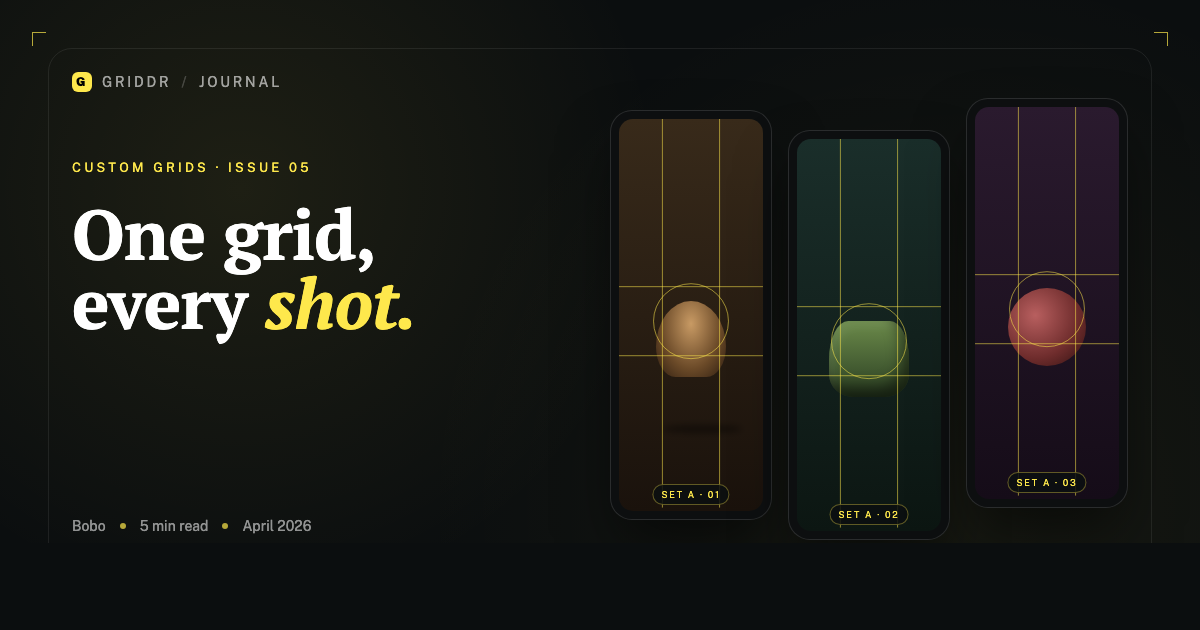
A customer once described his job as "photographing 200 vending machines a year." Same composition every time. Same distance, same angle, same framing. The point of the photo wasn't art — it was data. He needed every shot to be interchangeable so a logistics team could compare them at a glance.
Most camera apps treat each shot like a one-off. The grid resets, the framing is approximate, and three photos of the same thing taken three weeks apart never quite line up. That's the problem saved custom grids solve, and once you start using them you stop wanting to live without them.
Here's the workflow.
The setup: shoot one perfect frame first
Before you save a grid, shoot the photo you want every subsequent photo in the series to match. Get the framing right manually. Get the distance right, the angle right, the height right. Don't worry about the grid yet — you're making the reference.
Take that photo. Look at it on the screen. You're looking for two things:
- Where do the edges of the subject land in the frame?
- Where does the center of the subject sit?
Mark those mentally. The grid you're about to build is going to encode them.
Build the grid against the reference
Open Griddr's custom grid editor with that reference photo loaded as the underlay (in Griddr's editor, you can import a photo as a reference for drawing).
Now draw lines exactly along the subject's important edges:
- A vertical line at the subject's left edge
- A vertical line at the subject's right edge
- A horizontal line at the subject's top
- A horizontal line at the subject's bottom
That's a four-line grid that frames the subject. Save it.
For a vending machine: the grid is a rectangle that matches the machine's footprint when you stand 10 feet back. For a product on a white background: the grid is the bounding box of the product. For a wedding portrait setup against a backdrop: the grid is where the subject's head and shoulders should land.
The grid isn't a guide. It's the answer.
Now shoot the rest of the series
For every subsequent photo in the series:
- Open the camera with that saved grid active.
- Move yourself — not the subject — until the subject's edges fall on the grid lines.
- Shoot.
That's it. Each photo in the series is now framed identically because it's framed against the same reference.
The trick that takes the longest to learn is moving yourself, not zooming. Pinch-to-zoom changes the lens behavior subtly; stepping forward or back keeps the perspective consistent. If you zoom on shot 1 but step on shot 2, the products will distort differently and the series won't quite match.
Three real workflows
Product photography. Shoot the first product carefully against your backdrop. Save a custom grid that bounds it. For each subsequent product, place it in the same position, line up the bounding grid, fire. Twenty SKUs in twenty minutes, all identical framing.
Before-and-after. Renovation, weight loss, plant growth, hair growth — anything that needs a "now" and a "later" shot weeks apart. Build the grid on the "now" shot. Save it. Re-use it for the "later" shot. The two photos will overlay so cleanly you could blink-test them.
Wedding or event series. Set up your background and lighting once. Shoot the first guest's portrait. Save the grid as Reception — head & shoulders. Every subsequent guest gets framed the same way. The full set, when assembled, looks like one photographer's hand instead of one hundred individual decisions.
What goes wrong (and how to recover)
Two failures show up over and over:
The first photo wasn't actually right. You saved a grid against a reference that was off-center, and now the entire series inherits the mistake. Recovery: reshoot the reference, build a new grid, redo the series. It hurts but the grid is a force multiplier — get it right.
The subject's size changes. Vending machines come in different widths. Products come in different heights. You can't always frame edge-to-edge. The fix: build the grid for the center and angle, not the size. Two horizontal and two vertical lines that mark the subject's center cross, plus the angle of perspective. The subject can be larger or smaller in the frame — what stays consistent is how it sits.
What this looks like in 6 months
The first time you do this, it'll feel like overhead. By the third project, you'll have a small library of saved grids: Product 3/4 angle, Portrait — wide lens, Architecture — flat-on, Document — overhead. Each one is 30 seconds of setup that pays off across hundreds of shots.
I have eight saved. I use four of them weekly.
This is the workflow that got me to switch away from the default camera app years ago. I do enough product and reference photography that the math works out: the time spent building a grid, paid back across the series. Once you've felt that gap, it's hard to go back.
Related reading
Shoot this with Griddr
Get Griddr — free on iOS & Android